

One platform to run your business
The till, stock, purchasing and accounts in one system, built for shops.
What wears a shop down, and what Kulnabooks does about it
Problems every shop owner knows. Most start with sales, stock and accounts kept in different places.
Records in notebooks and spreadsheets
Sales, stock, purchasing and accounts in one system that records each transaction once.
Not knowing what is left on the shelf
Each item’s stock in each branch moves with every sale and delivery, with an alert when it reaches its reorder level.
Accounts written up by hand at month end
Entries post from every sale, purchase and payment as it is recorded.
Credit nobody can keep track of
A credit limit per customer, a statement, and receivables aging.
Branches that cannot see each other
Each branch its own figures and stock, transfers between branches, and reports for one branch or all of them.
Internet that drops at the busiest hour
The till keeps selling, and sends the sales in order when the connection returns.
One system, from the supplier to the balance sheet
Each step records what happened once and carries it on to the next. Pick a step to see its screen.
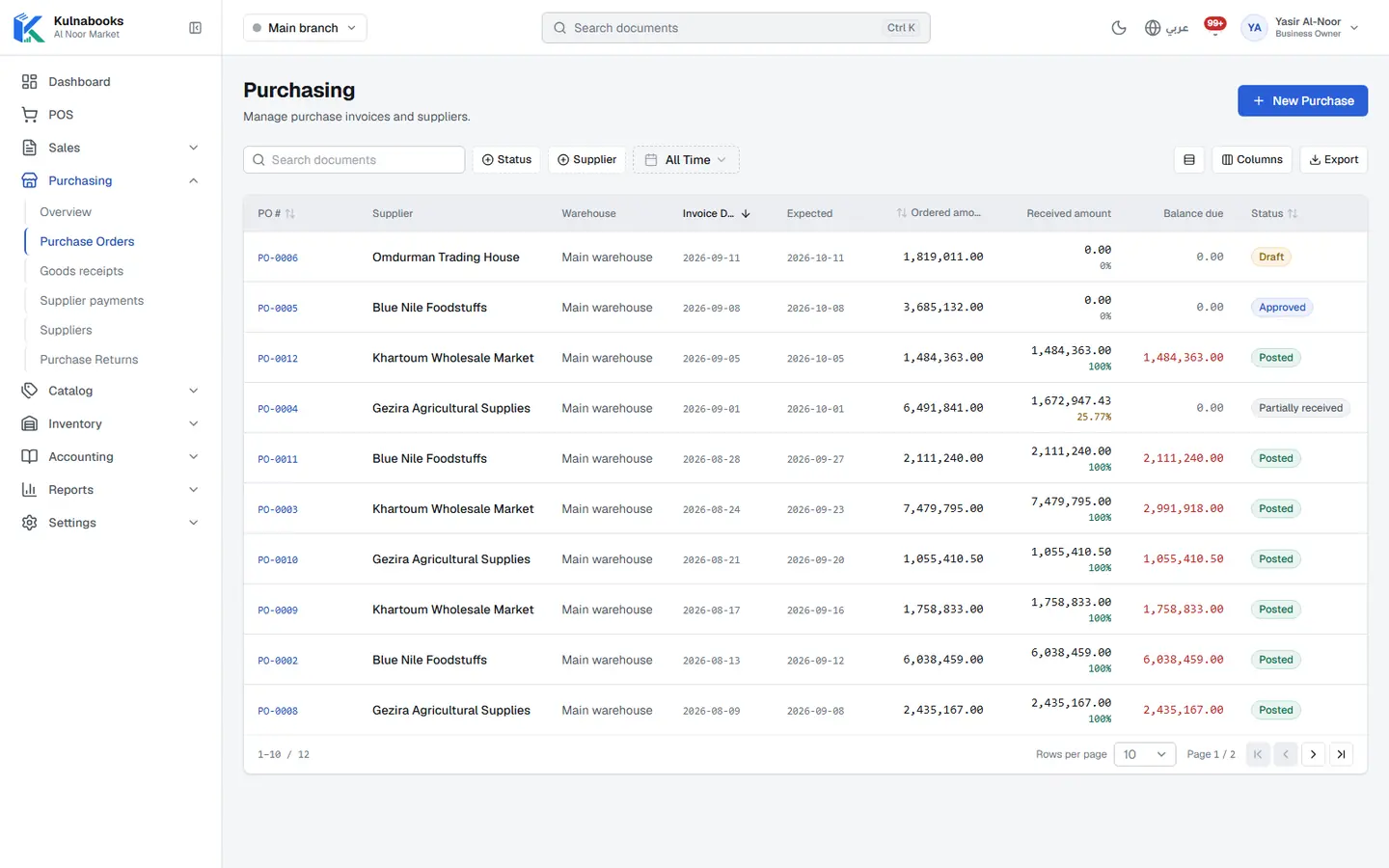
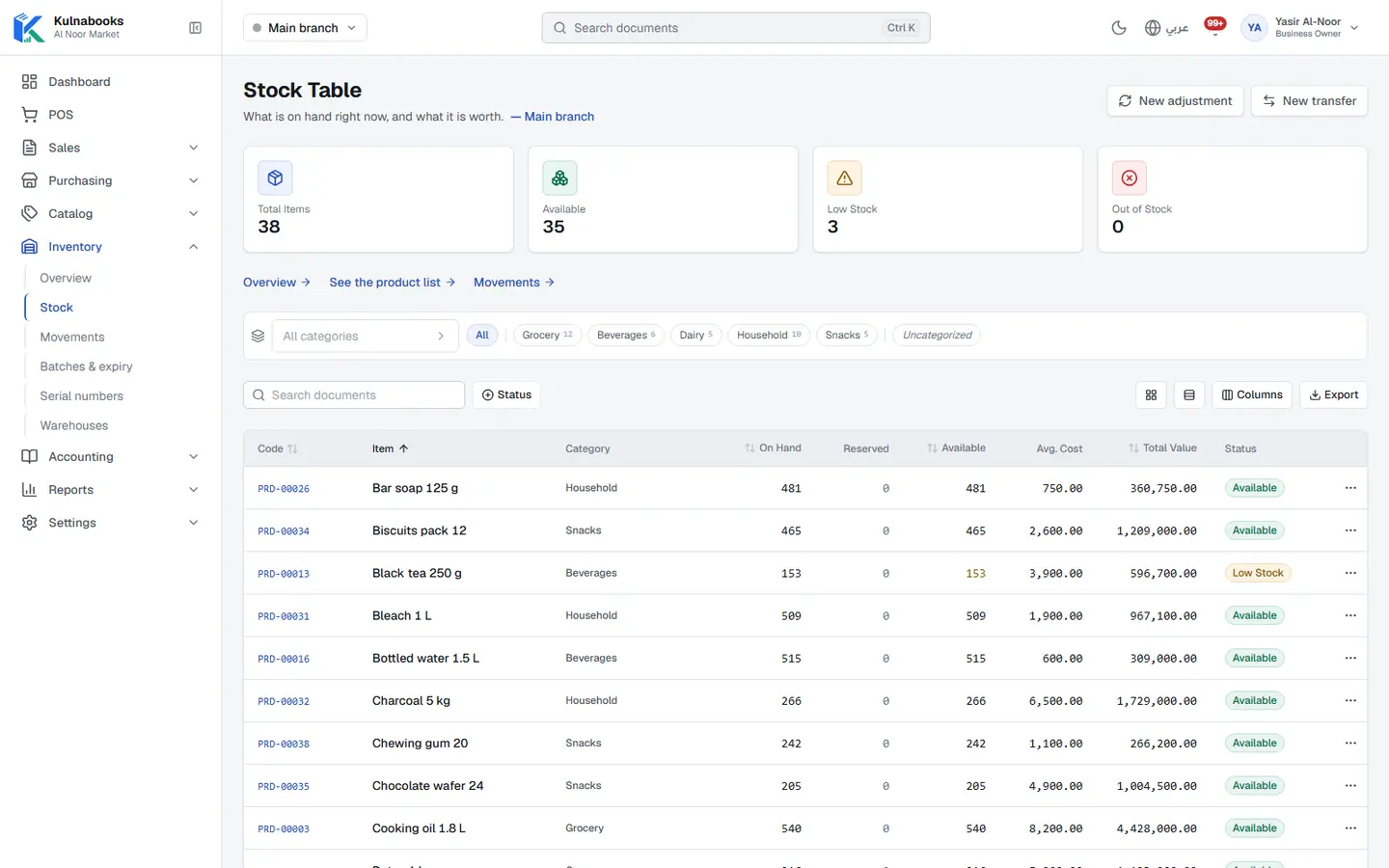
Purchasing & suppliers
Purchase orders, part deliveries and supplier balances
- An order with clear stages
- Receive all of it, or part
- What you owe the supplier
Goods & stock
Every item’s stock in every branch, with barcodes and expiry
- One product list
- Import, and change in bulk
- Stock, branch by branch
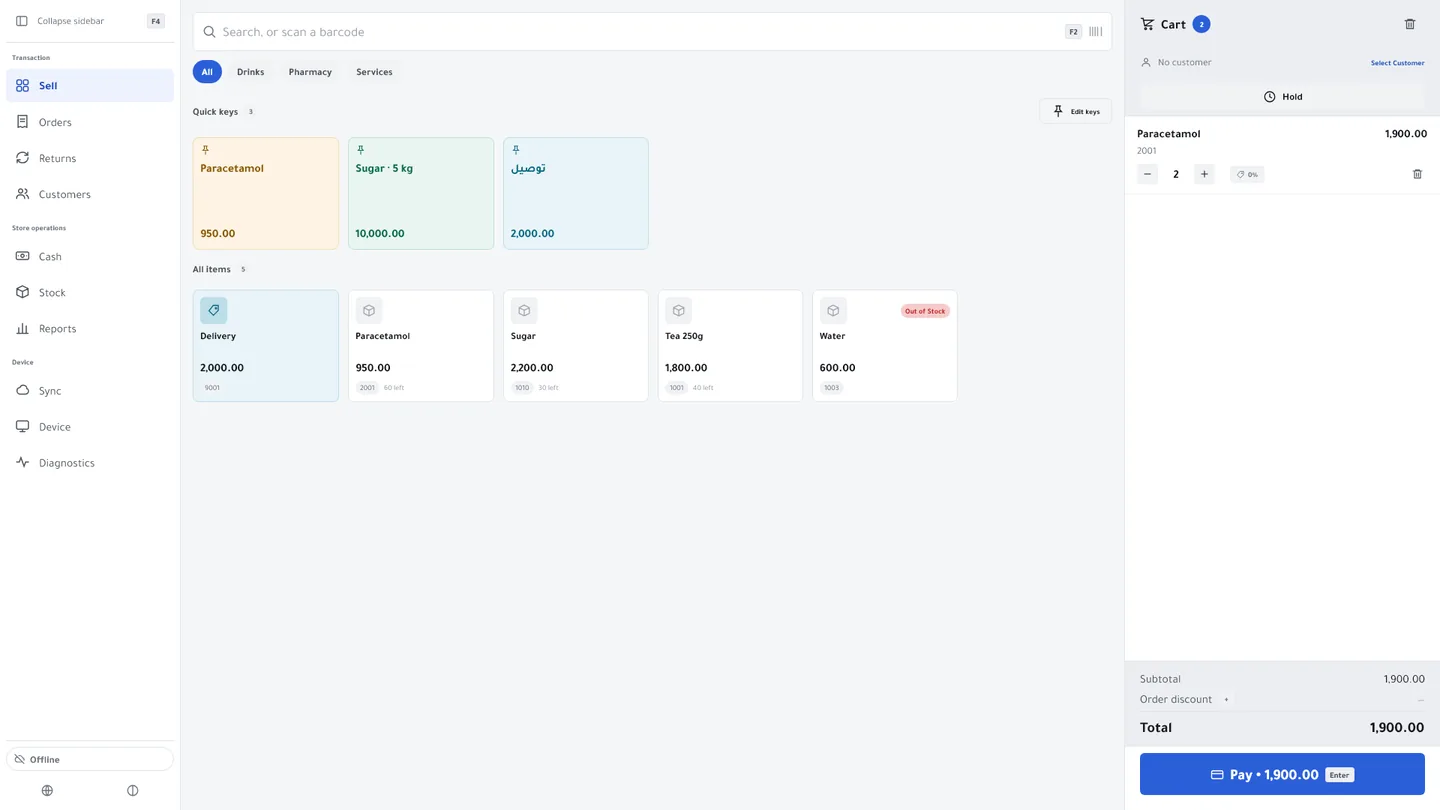
The till
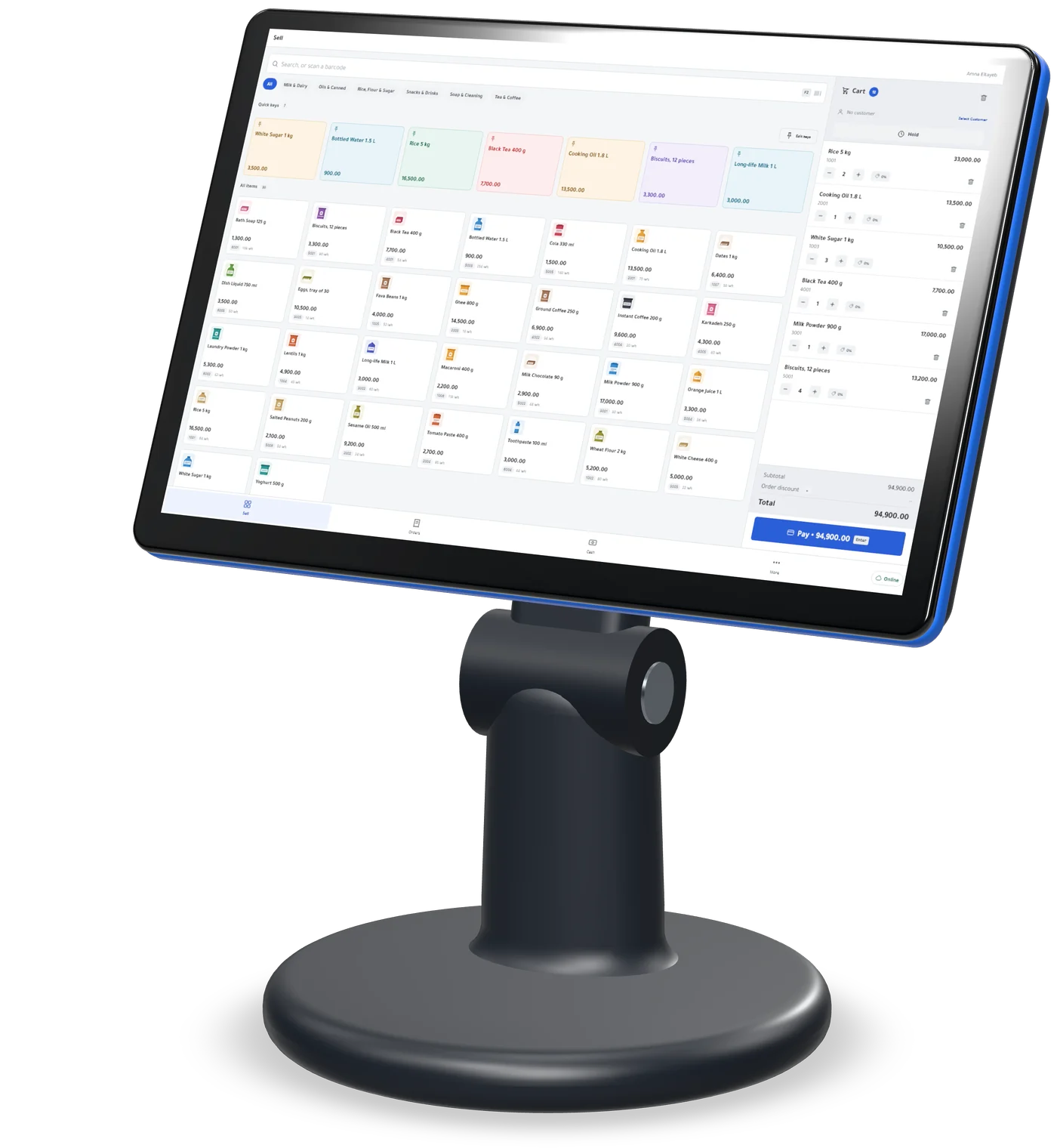
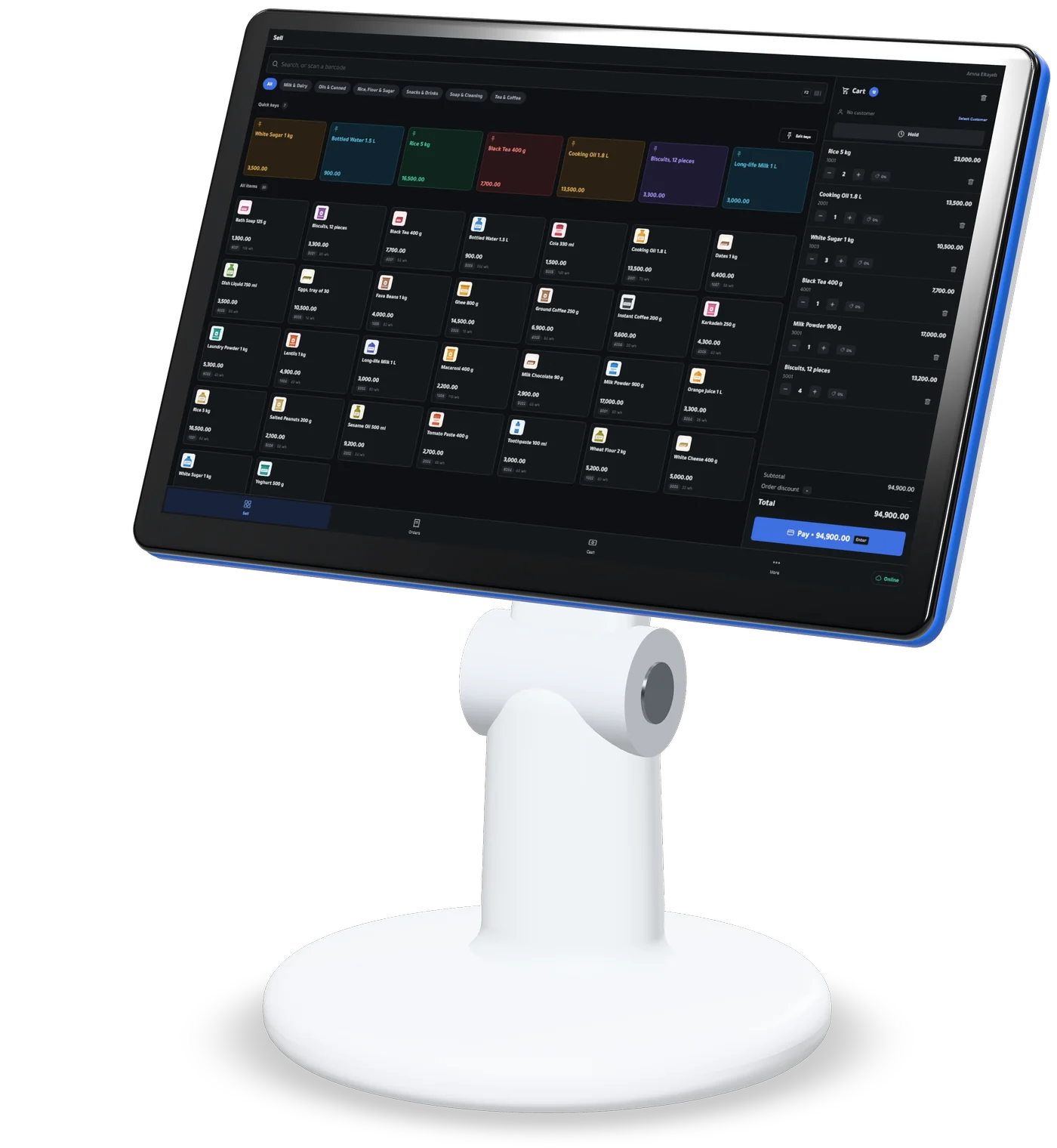
Barcodes, receipts and shifts, in a browser or on Windows
- Find anything in a second
- Take payment the way customers pay
- Control without slowing down
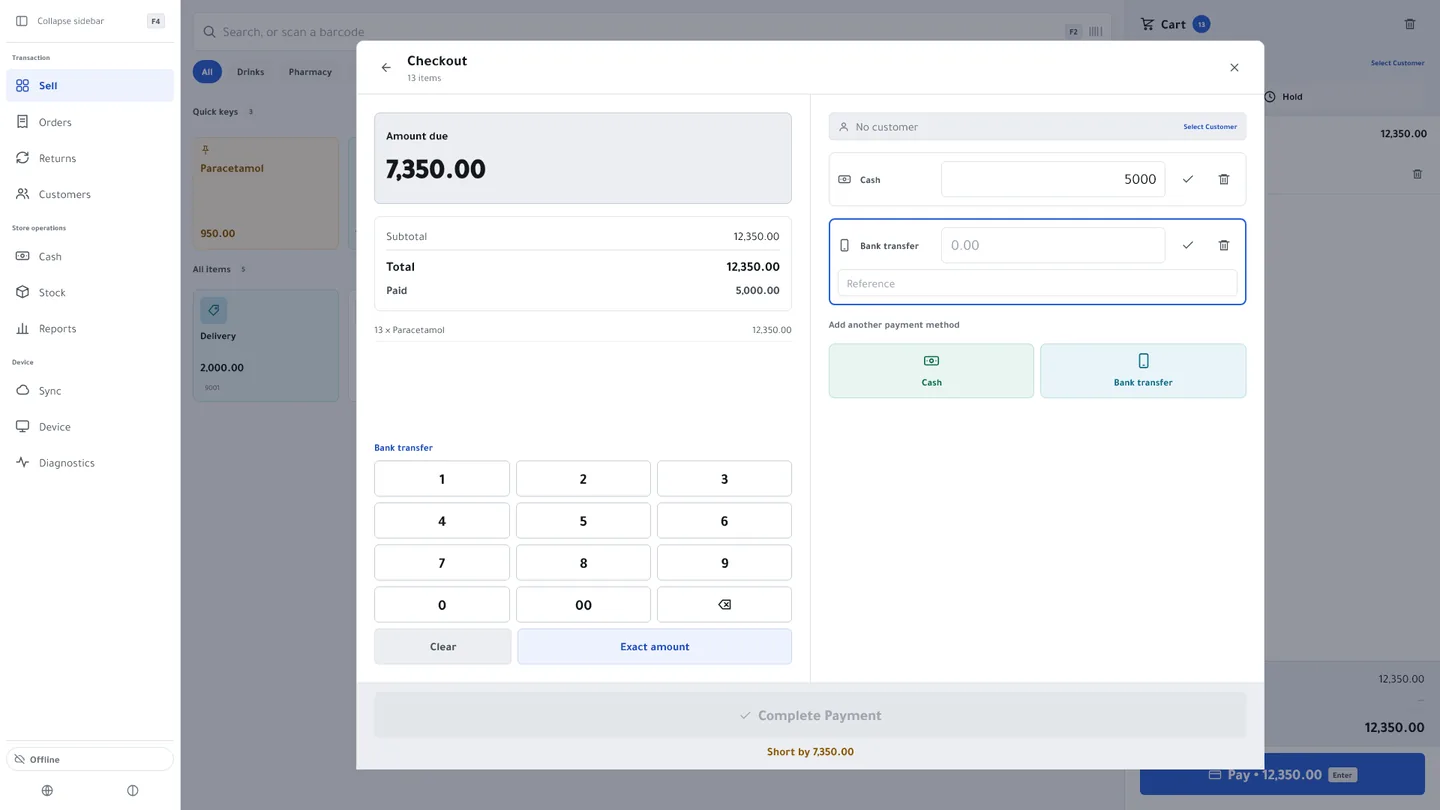
Cash & bank transfer payments
Each transfer with its reference, and the drawer counted at shift close
- The transfer reference, with the payment
- Your bank account, in front of the customer
- Change, worked out
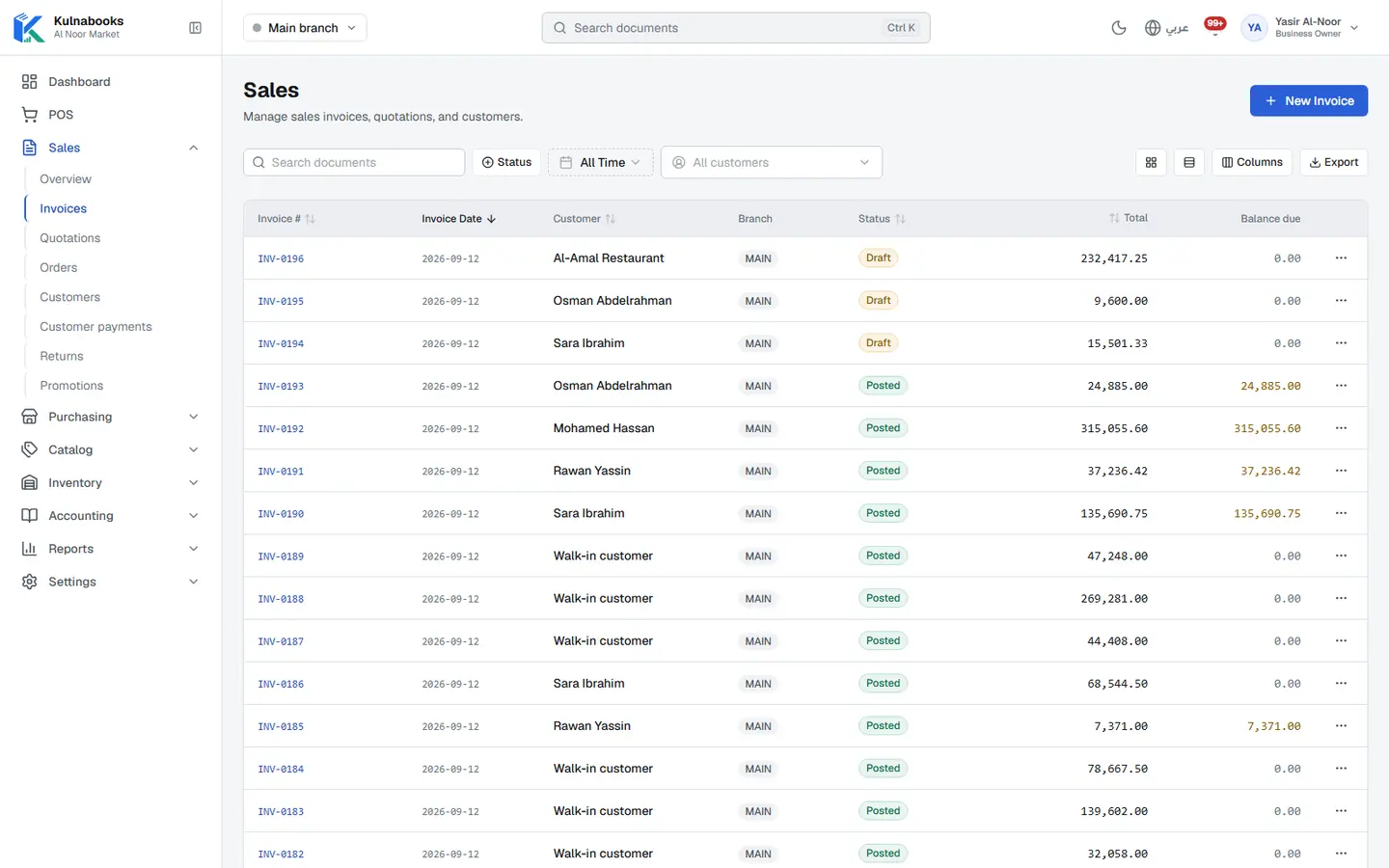
Customers & credit
A credit limit for each customer, and a PDF statement
- A record for every customer
- A credit limit that holds
- On account at the till
Accounts
Entries that post themselves from every sale and purchase
- Entries that post themselves
- Chart of accounts and journals
- Expenses
What posts on its own
- A sale at the tillRevenue, VAT and the cost of goods sold, and stock going down
- A purchase order received and postedStock going up, and what you owe the supplier
- A payment from a customer or to a supplierCash or bank, and the customer’s or supplier’s balance
Reports & numbers
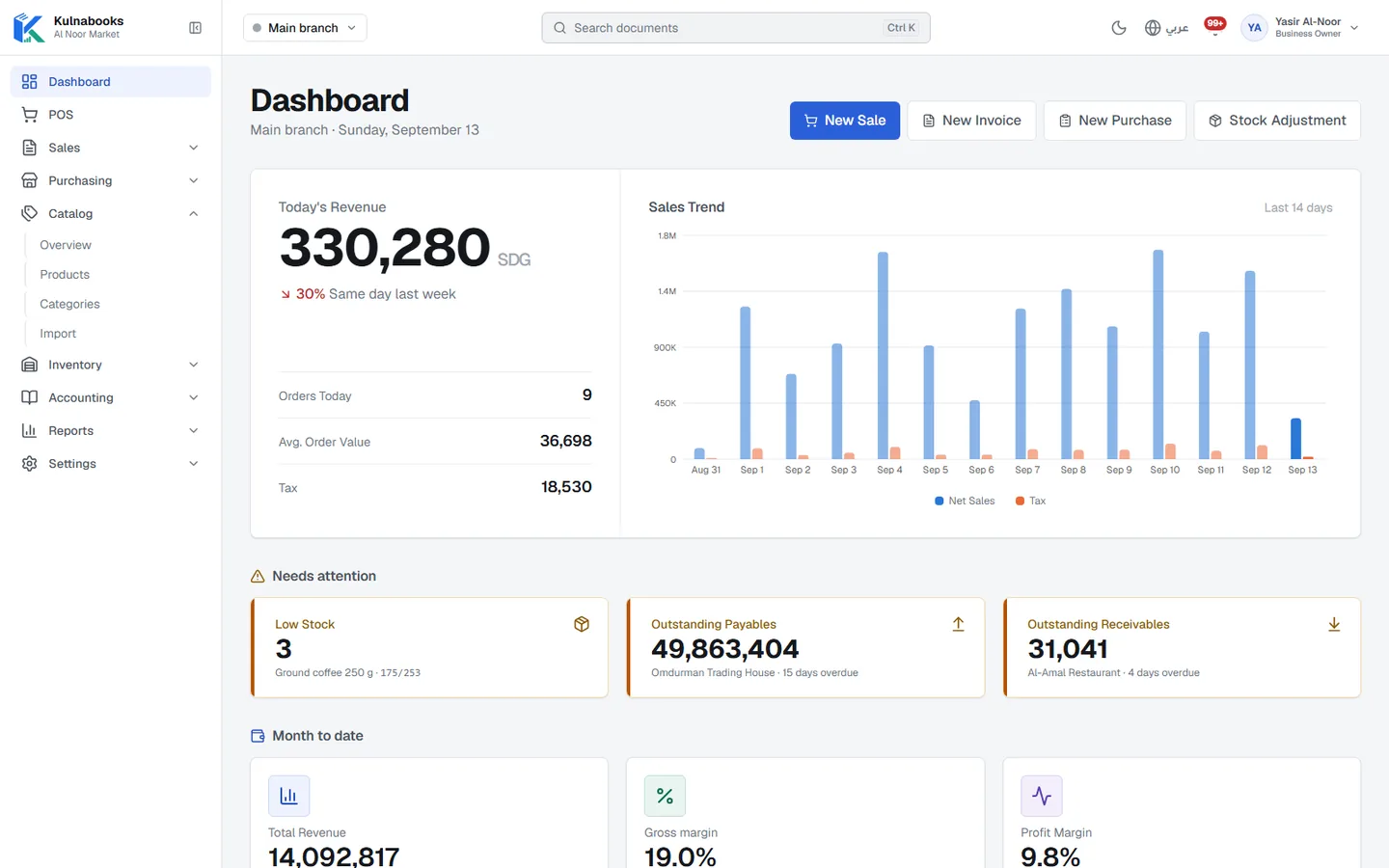
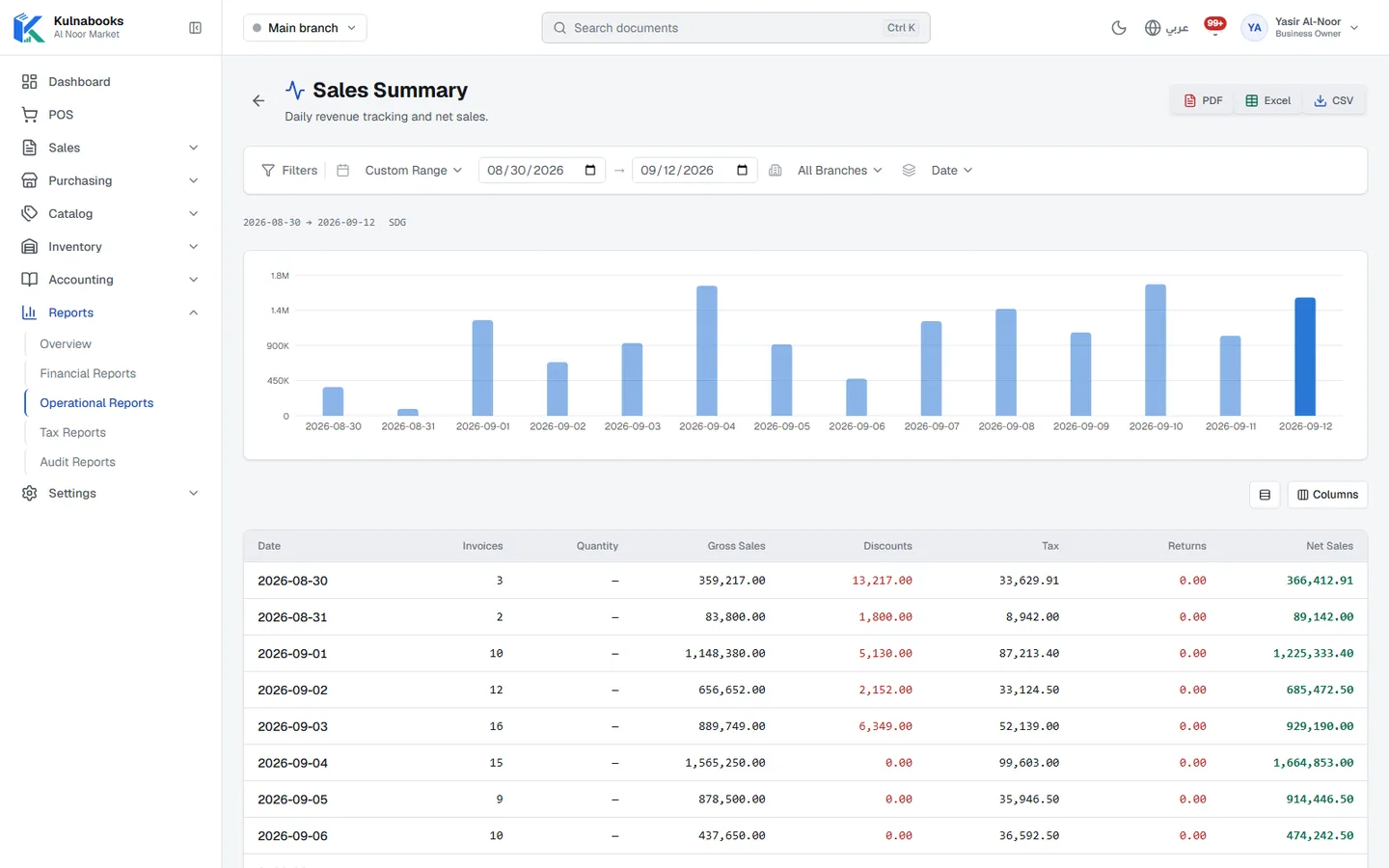
The owner’s dashboard, and reports you filter and export
- The owner’s dashboard
- What needs your attention
- A dashboard for each role
Branches & team
Each branch its own figures, each person their own permissions
- Every branch, its own figures
- Tills approved first
- Invite your team by e-mail
The internet drops. Selling does not.
Every till keeps the product list on the device, so it never waits for the network to sell.
Online
Each sale reaches the back office as it is recorded, and the till’s product list and prices stay up to date.
Offline
The till keeps selling from the list it holds, with no cap on how many sales, and prints every receipt with its real number and QR code.
Back online
The saved sales are sent in order, and any the server refuses shows on the till’s sync screen.
Refunds and coupon codes need a connection, and the back office works online.
What kind of shop do you run?
Pick yours, and see Kulnabooks in a shop like it.
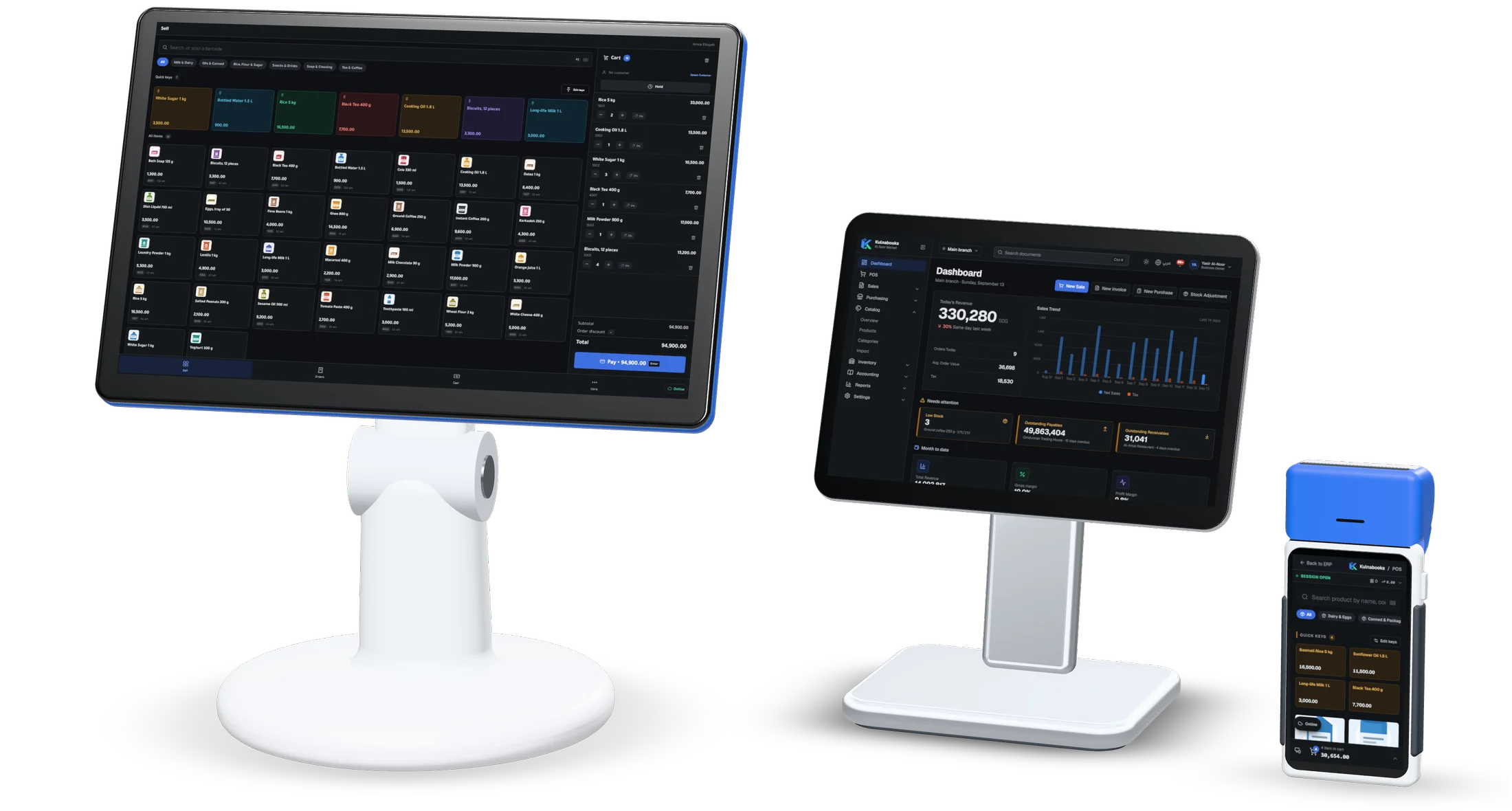
The real product, on the hardware in your shop
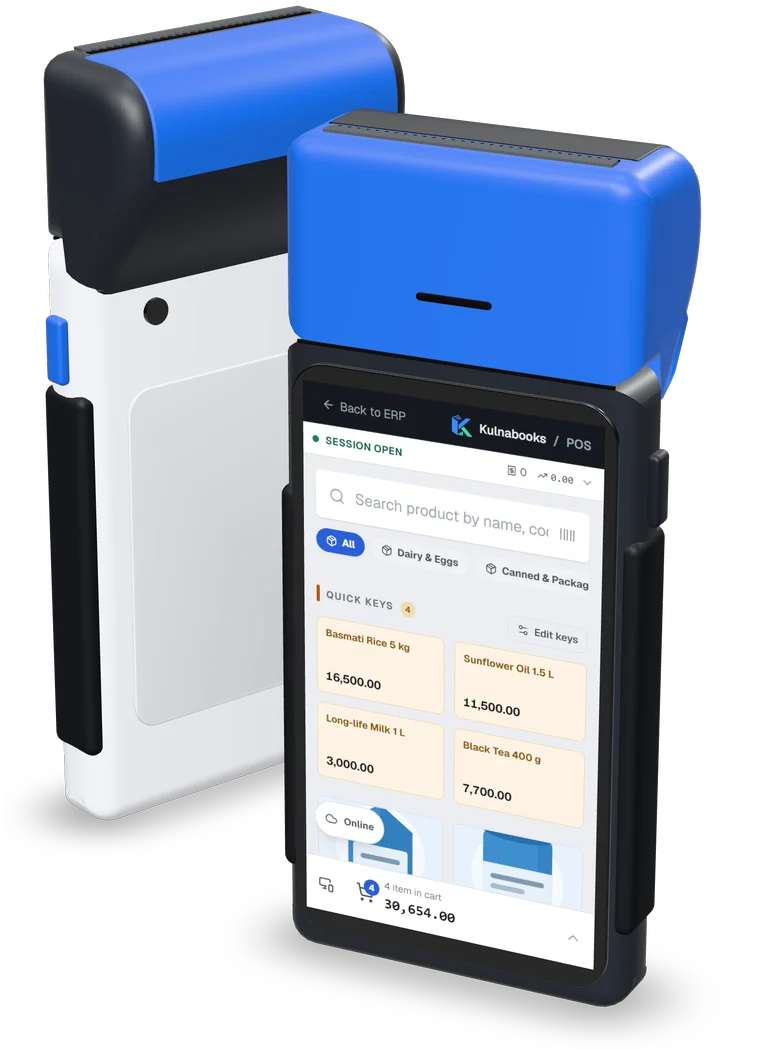
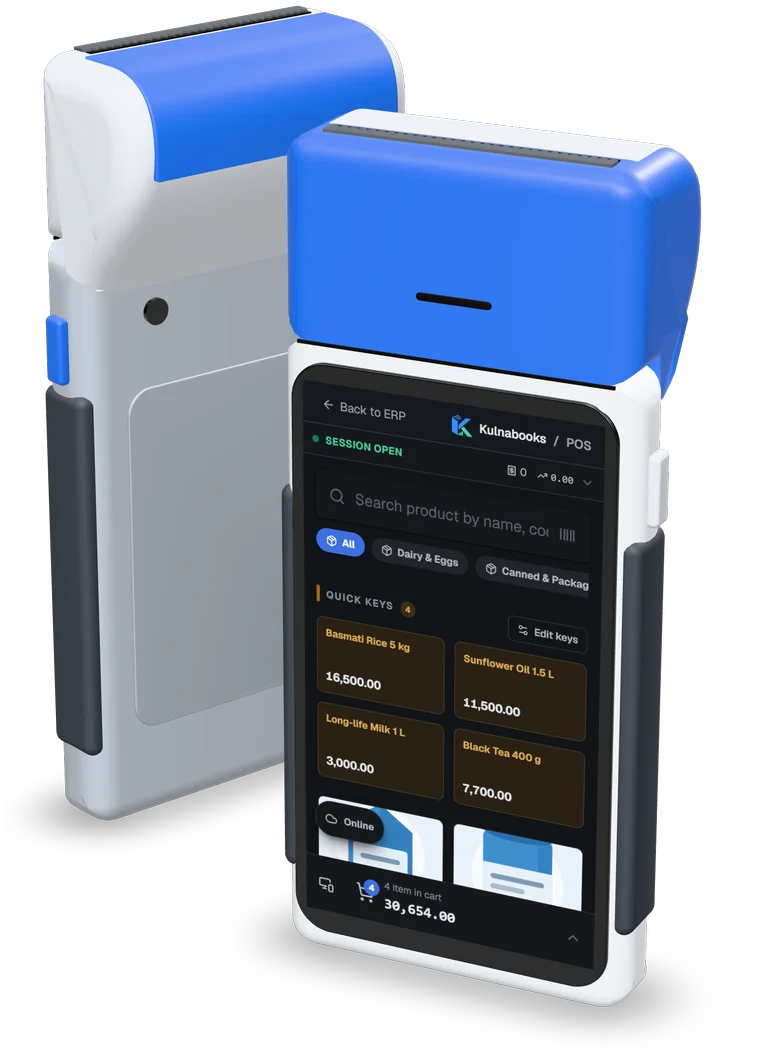
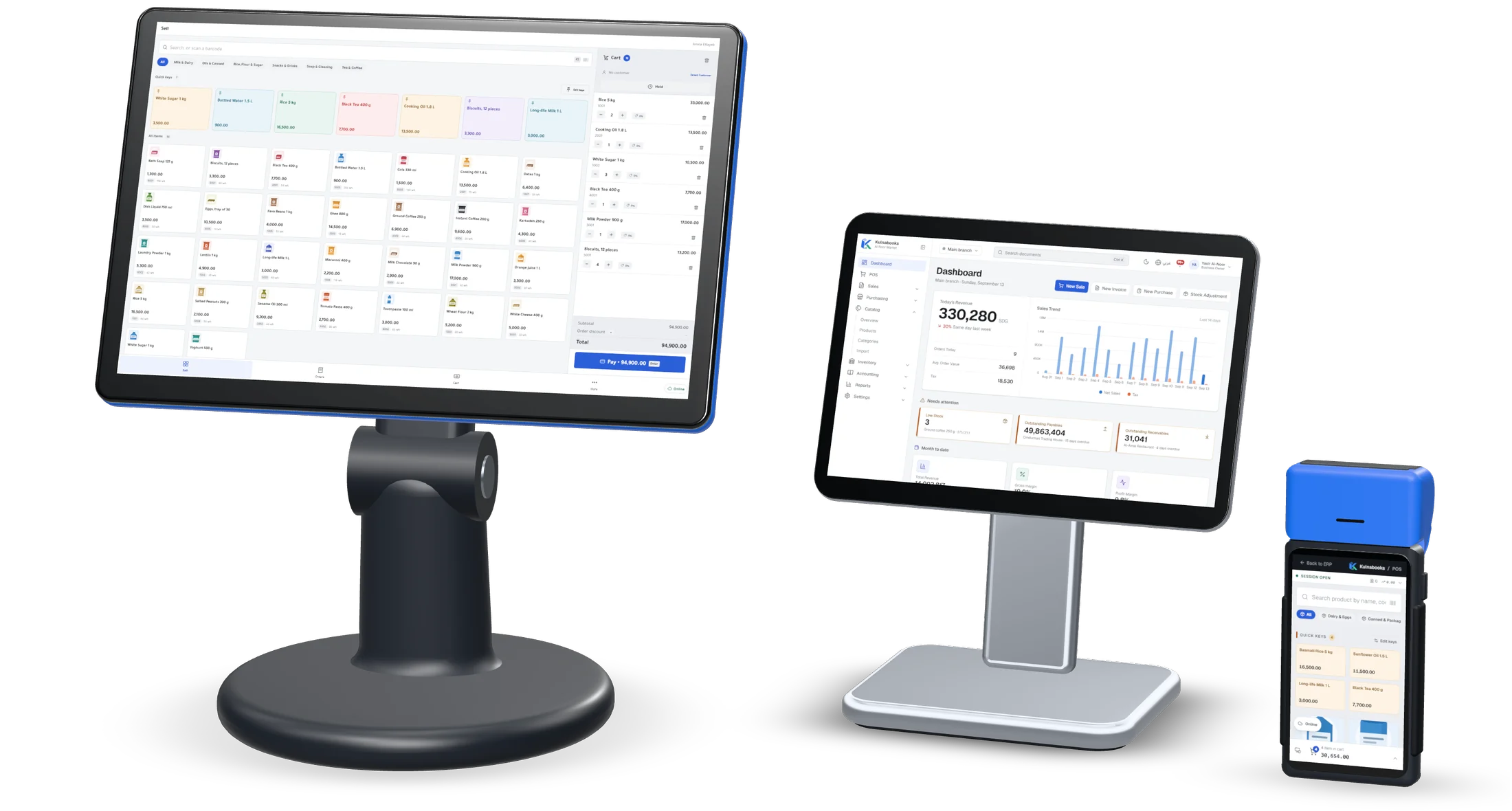
The Windows app on a counter terminal, the back office on a tablet, the browser till on a handheld. Kulnabooks is the software. Buy the hardware anywhere.
One price per shop size
Every plan includes every module. Plans differ in how many branches, users and tills you run, and in how far each module goes.
- StarterOne shop, one till$15 / month≈ 120,000 SDG
- Branches
- 1
- Users
- 3
- Tills
- 1
- BusinessMost chosenA growing shop or two branches$30 / month≈ 240,000 SDG
- Branches
- 2
- Users
- 10
- Tills
- 4
- ProfessionalSeveral branches and a bigger team$55 / month≈ 440,000 SDG
- Branches
- 5
- Users
- 30
- Tills
- 10
- EnterpriseChains and large operationsFrom $100 / monthCustom price
- Branches
- Unlimited
- Users
- Unlimited
- Tills
- Unlimited
Questions shops ask us
- Does it work without internet?
- Yes, at the till. The browser till and the Windows app keep the product list on the device, keep selling while offline, and send the sales in order when the connection returns. There is no cap on how many sales it holds, however long the outage lasts. The back office needs a connection, and so do refunds and coupon codes.
- Which devices do I need?
- Any computer or tablet with a modern browser runs the till and the back office. For a counter with a receipt printer and cash drawer, use the Kulnabooks POS app for Windows.
- Which payment methods can I take?
- Cash and transfers from any bank app, and sales on account for customers with a credit limit. The reference of each transfer is recorded.
- Can I run more than one branch?
- Yes. Each branch has its own stock and tills, you can transfer stock between branches, and reports can show one branch or all of them. The number of branches depends on your plan.
Open your shop in Kulnabooks
Sign up, name your business and your first store, and start adding products.